顯示具有 Terminal 標籤的文章。 顯示所有文章

2020年7月15日 星期三

Remote desktop connection to a server takes very long time to connect

The following steps could speed up the RDP connection:
1. Open Network Connections in the configuration panel.
2. Right-click the icon of the network interface which is responsible for the connection to your server and select Properties.
3. In the Networking tab, click on the Configure… button.
4. In the next window, switch to the Advanced tab.
5. Click the Large Send Offload Version 2 (IPv4) and change the value to Disabled.
6. Click Start > click Run > type regedit and then click OK.
7. Locate and then click the following registry subkey:
HKEY_LOCAL_MACHINE\SYSTEM\CurrentControlSet\Services\Tcpip\Parameters
8. In the right pane, make sure that the DisableTaskOffload registry entry exists. If this entry does not exist, add the entry:
DWORD Value: DisableTaskOffload
Value Data: 1
9. Exit Registry Editor.
The following commands need to be entered through the command shell.
Which you can enter by doing: start > run > enter cmd.
netsh interface tcp set global autotuninglevel=disabled
and
netsh interface tcp set global autotuninglevel=highlyrestricted

2020年2月3日 星期一

Allow non-administrators RDP Access to Domain Controller

To allow remote connection to the domain controllers for members of the Remote Desktop Users group you need to perform the following action for each of your DCs:
  • Start Local Group Policy Editor (gpedit.msc);
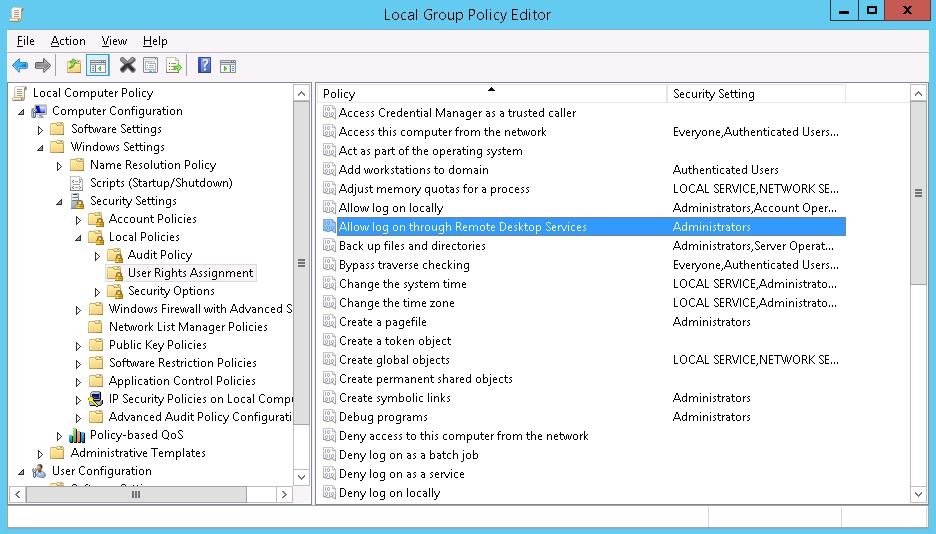
  • Go to the section Computer Configuration -> Windows settings -> Security Settings -> Local policies -> User Rights Assignment;
  • Find the policy Allow log on through Remote Desktop Services
  • Edit the policy by adding the domain group Remote Desktop Users (like this: domainname\Remote Desktop Users), or directly the domain user, or a group (domain\somegroupname) to it;
  • Update local policies on the DC using the command gpupdate /force


Display the members of the domain group Remote Desktop Users on the domain controller:

net localgroup "Remote Desktop Users"

As you can see, it is empty. Add a domain user it-pro to it (in our example, it-pro is a standard domain user without administrative privileges):
net localgroup "Remote Desktop Users" /add corp\it-pro

Make sure that the user is added to this group:
net localgroup "Remote Desktop Users"

2015年6月2日 星期二

How to Reset a 120-Day Terminal Server

1 Restart the Windows Server 2008 computer, and log in to a Windows Server 2008 computer Administrator account. Click "Start," and select the "Search" box. Enter "%WINDIR%\system32\lserver" in the "Search" box, and press "Enter." The "Lserver" window will appear.

2 Right-click on the "TSLIC.edb" file, and click "Rename" in the menu that appears. Enter "tslic.prior" in the name box, press "Enter" and then reboot the computer.


3 Boot a Windows client computer that has been used to connect to the Windows Server 2008 Terminal Services computer, and log in using an Administrator account. Click "Start," select "Run" or Search," enter "regedit" and press "Enter."

4 Select the "HKEY_LOCAL_MACHINE" folder in the "Registry Editor" window that appears, and then navigate to the "HKEY_LOCAL_MACHINE\SOFTWARE\Microsoft\MSLicensing" folder.

5 Find the "CAL TS" keys located in the right pane. Right-click on each "CAL TS" key, and select "Delete" in the drop-down menu. Click the red "X" in the upper right corner of the "Registry Editor" window to close the "Registry Editor." Restart the Windows client computer.

2015年1月12日 星期一

Users getting disconnected from the RDP sessiopns

Make the following registry changes on the RDP client machine:

 [HKEY_CURRENT_USER\Software\Microsoft\Terminal Server Client]

"Keep Alive Interval"=dword:00000001

 Make the following registry changes on the terminal server:

 [HKEY_LOCAL_MACHINE\SYSTEM\CurrentControlSet\Control\Terminal Server]

"KeepAliveInterval"=dword:00000001

"KeepAliveEnable"=dword:00000001

2014年9月30日 星期二

Terminal - Restrict each user to one session


Windows 2003 2008 都可以達到此需求 .
2003 預設可以多人連線 ,2008 預設僅能一個人使用 .有兩種方式可以開放多個使用者.

請參考下面步驟 .謝謝

To limit users to one remote session

Using Group Policies (best practice)

1.      Open Group Policy.
2.      In Computer Configuration, Administrative Templates, Windows Components, Terminal Services, double-click the Restrict Terminal Services users to a single remote session setting.
3.      Click Enabled, and then click OK.
Important
·         You should thoroughly test any changes you make to Group Policy settings before applying them to users or computers. For more information on testing policy settings, see Resultant Set of Policy.
Notes
·         To perform this procedure, you must be a member of the Administrators group on the local computer, or you must have been delegated the appropriate authority. If the computer is joined to a domain, members of the Domain Admins group might be able to perform this procedure. As a security best practice, consider using Run as to perform this procedure. For more information, see Default local groups, Default groups, and Using Run as.
·         Use the above procedure to configure the local Group Policy object. To change a policy for a domain or an organizational unit, you must log on to the primary domain controller as an Administrator. Then, you must invoke Group Policy through the Active Directory Users and Computers snap-in.

Using Terminal Services Configuration

1.      Open Terminal Services Configuration.
2.      In the console tree, click Server Settings.
3.      In the details pane, right-click Restrict each user to one session, and then click Properties.
4.      Check the Restrict each user to one session check box, and then click OK.
Note
·         To open Terminal Services Configuration, click Start, click Control Panel, double-click Administrative Tools, and then double-click Terminal Services Configuration.

2014年9月1日 星期一

Users cannot logon to TS 2012 R2 Foundation: "No licenses available"

1. Please Check the local group police on the terminal server.
 
Following policies should be configured:
Local Computer Policy -> Computer Configuration 
-> Administrative Templates -> Windows Components 
-> Remote Desktop Services -> Remote Desktop Session Host 
-> Licensing
- "Use the specified RD license servers" = Servername 
- "Set the Remote Desktop licensing mode" = Per User
 
2. Now we can delete also the Grace Period registry key 
    on the terminal server:
    HKEY_LOCAL_MACHINE\SYSTEM\CurrentControlSet\Control
     \Terminal Server\RCM\GracePeriod

Note: you must take ownership and give admin users full control 
 to be able to delete this key.
Click the key you want to take ownership of.
On the Edit menu, click Permissions.
Click Advanced, and then click the Owner tab.
Under Change owner to, click the new owner, and then click OK.


3. Restarted the Terminal Server

2014年7月29日 星期二

The following matrix shows which TS CAL’s and RDS CAL’s can be entered on different versions of the TS and RD Licensing Server:


Terminal / RDS Licensing Server OS Version
CAL Type
Windows Server 2000
Windows Server 2003
Windows Server 2008
Windows Server 2008 R2
Windows Server 2012 or 2012 R2
Windows Server 2000 TS CAL
Yes
Yes
Yes
Yes
No
Windows Server 2003 TS CAL
No
Yes
Yes
Yes
Yes
Windows Server 2008 TS CAL
No
No
Yes
Yes
Yes
Windows Server 2008 R2 RDS CAL
No
No
Yes
Yes
Yes
Windows Server
2012 RDS CAL
No
No
No
No
Yes