2020年3月15日 星期日

SCOM Agent Pending Actions can get out of sync between the Console, and the database


Problem
==========
Agent Pending Actions can get out of sync between the Console, and the database

Cause
========
Orphaned client record in 'agentpendingaction' table of OperationsManagerDB
Action
=============
get-scompendingmanagement
get-scompendingmanagement | where{$_.Agentname -eq "agentname"}|  
get-scompendingmanagement | where{$_.Agentname -eq "agentname"}| Approve-SCOMpendingManagement
agentname 改成您的Agent名稱


Solution
=========
NOTE Before executing any query against the Operations Manager database be sure that a complete and current backup exists. 

exec p_AgentPendingActionDeleteByAgentName 'agentname.domain.com'

2020年2月3日 星期一

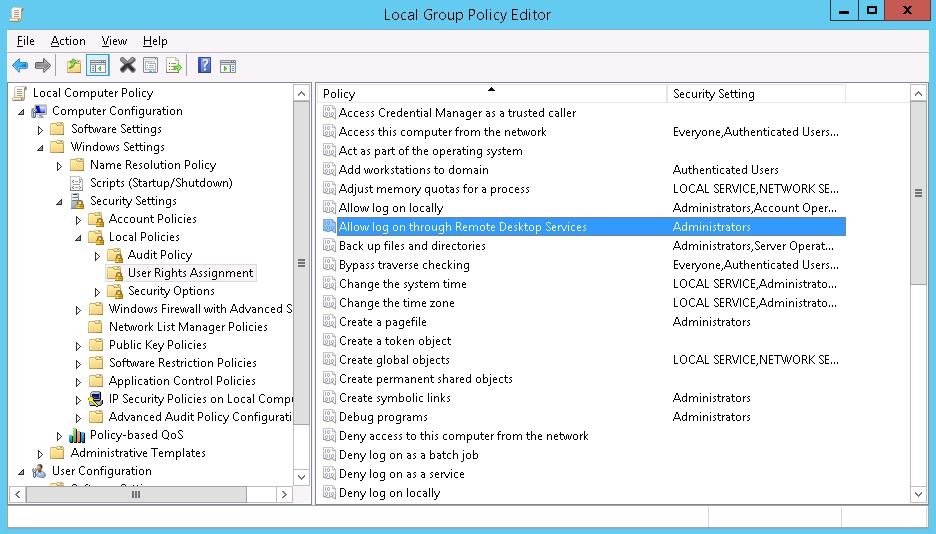
Allow non-administrators RDP Access to Domain Controller

To allow remote connection to the domain controllers for members of the Remote Desktop Users group you need to perform the following action for each of your DCs:
  • Start Local Group Policy Editor (gpedit.msc);
  • Go to the section Computer Configuration -> Windows settings -> Security Settings -> Local policies -> User Rights Assignment;
  • Find the policy Allow log on through Remote Desktop Services
  • Edit the policy by adding the domain group Remote Desktop Users (like this: domainname\Remote Desktop Users), or directly the domain user, or a group (domain\somegroupname) to it;
  • Update local policies on the DC using the command gpupdate /force


Display the members of the domain group Remote Desktop Users on the domain controller:

net localgroup "Remote Desktop Users"

As you can see, it is empty. Add a domain user it-pro to it (in our example, it-pro is a standard domain user without administrative privileges):
net localgroup "Remote Desktop Users" /add corp\it-pro

Make sure that the user is added to this group:
net localgroup "Remote Desktop Users"

2019年12月23日 星期一

Task Scheduler Event IDs

Event ID
Task Category
100
Task Started
101
Task Start Failed
102
Task completed
103
Action start failed
106
Task registered
107
Task triggered on scheduler
108
Task triggered on event
110
Task triggered by user
111
Task terminated
118
Task triggered by computer startup
119
Task triggered on logon
129
Created Task Process
135
Launch condition not met, machine not idle
140
Task registration updated
141
Task registration deleted
142
Task disabled
200
Action started
201
Action completed
203
Action failed to start
301
Task engine properly shut down
310
Task Engine started
311
Task Engine failed to start
314
Task Engine idle
317
Task Engine started
318
Task engine properly shut down
319
Task Engine received message to start task
322
Launch request ignored, instance already running
329
Task stopping due to timeout reached
332
Launch condition not met, user not logged-on
400
Service started
411
Service signaled time change
700
Compatibility module started

2019年12月9日 星期一

SCOM Action Account changed- Getting Event ID 31551 and 31561 on Management Server


Cause
========
Still old sccount

Solution
==========
1.Log onto the SQL server that the OperationsManagerDW db is located on. Go to the dbo.ManagementGroup table.
2.Right Click and go to Edit Top 200 Rows.
3.Go to the WriterLoginName check out whether the old account is associated with this.
4.If it is, then change it to the new account

DPM 2016 Agent install fails with Error 347: An error occurred when the agent operation attempted to create the DPM Agent Coordinator service


Symptoms
=============
When you try to protect Windows Server 2008 or Windows Server 2008 R2 by installing the Microsoft System Center 2016 Data Protection Manager (DPM) Agent, the installation fails, and you receive one of the following error messages:
  • When you try to install the agent from the DPM console:
Install protection agent on %servername% failed:
Error 347: An error occurred when the agent operation attempted to create the DPM Agent Coordinator service on %servername%.
Error details: The service did not respond to the start or control request in a timely fashion
Recommended action: Verify that the Agent Coordinator service on %servername% is responding, if it is present. Review the error details, take the appropriate action, and then retry the agent operation.
  • When you try to install the agent manually on the protected server:
The program can’t start because mi.dll is missing from your computer. Try reinstalling the program to fix this problem.
Cause
=============
This issue typically occurs because a prerequisite is not installed. Most frequently, Windows Management Framework (WMF) needs to be updated.
Workaround
=============
To work around this issue, follow these steps:
  1. Upgrade Windows Management Framework (WMF) on the production server to version 4.0.
  2. Make sure all other prerequisites are installed.
  3. Again try to install the DPM Agent.

2019年11月6日 星期三

Service Manager Install Fails with: An Error occurred while executing a custom action:RollbackCleanup.


An error occurred while executing a custom action:_CreatePortalWebSite.11EE91AB_EABF_48A6_9973_4DCD73190AC6
This upgrade attempt has failed before permanent modifications were made. Upgrade has successfully rolled back to the original state of the system. Once the correction are made, you can retry upgrade for this role.


Solution
=======
1.Open regedit from the Start menu.
2.Browse to the following subkey: HKEY_LOCAL_MACHINE\SYSTEM\CurrentControlSet\Control
3.Create a new DWORD value named ServicePipeTimeout.
4.In the properties of ServicePipeTimeout, select Decimal, and give a value of 600000. (This is milliseconds).
5.Restart the Computer.

2019年8月1日 星期四

How to Clear the Outlook Cache


How to Clear the Outlook Cache
Removing the cache in Outlook doesn't delete emails, contacts, or other useful information
  1. Save any work and close outlook
  2. Press Windows key+R.
  3. In the Run dialog box, enter %localappdata%\Microsoft\Outlook and press Enter.
  4. Double-click the RoamCache folder to view the cache files.
      Note:
      Back up the cache files so that you can restore the files if something goes wrong.

  1. To delete the cache files, press and hold the Shift key while selecting all of the files. Then press the Delete key, or right-click the highlighted files and select Delete.
  2. Outlook automatically makes new cache files when you open Outlook.